To begin hiring with HireTrace, you need to create a vacancy first. Follow these steps
- Go to Vacancies page
- Click on the “ + Create New Vacancy” button.
- Add Job Details
- Request Additional Details (Optional)
- Review all the details you have entered. If everything is correct, click ” Create “
Use the left side navigation bar to go to the “Vacancies” page.
Provide details such as the Job Position, Job Description, etc. These details will appear on the job application form. Then click ” Next “.
If you need extra information like a cover letter, salary expectations, or availability date, select the corresponding checkboxes.
To include additional custom questions for candidates, add them under the Custom Questions section. For example, you could ask, “How many years of relevant experience do you have?” These questions will also appear on the job application form. Then, click ” Review “.
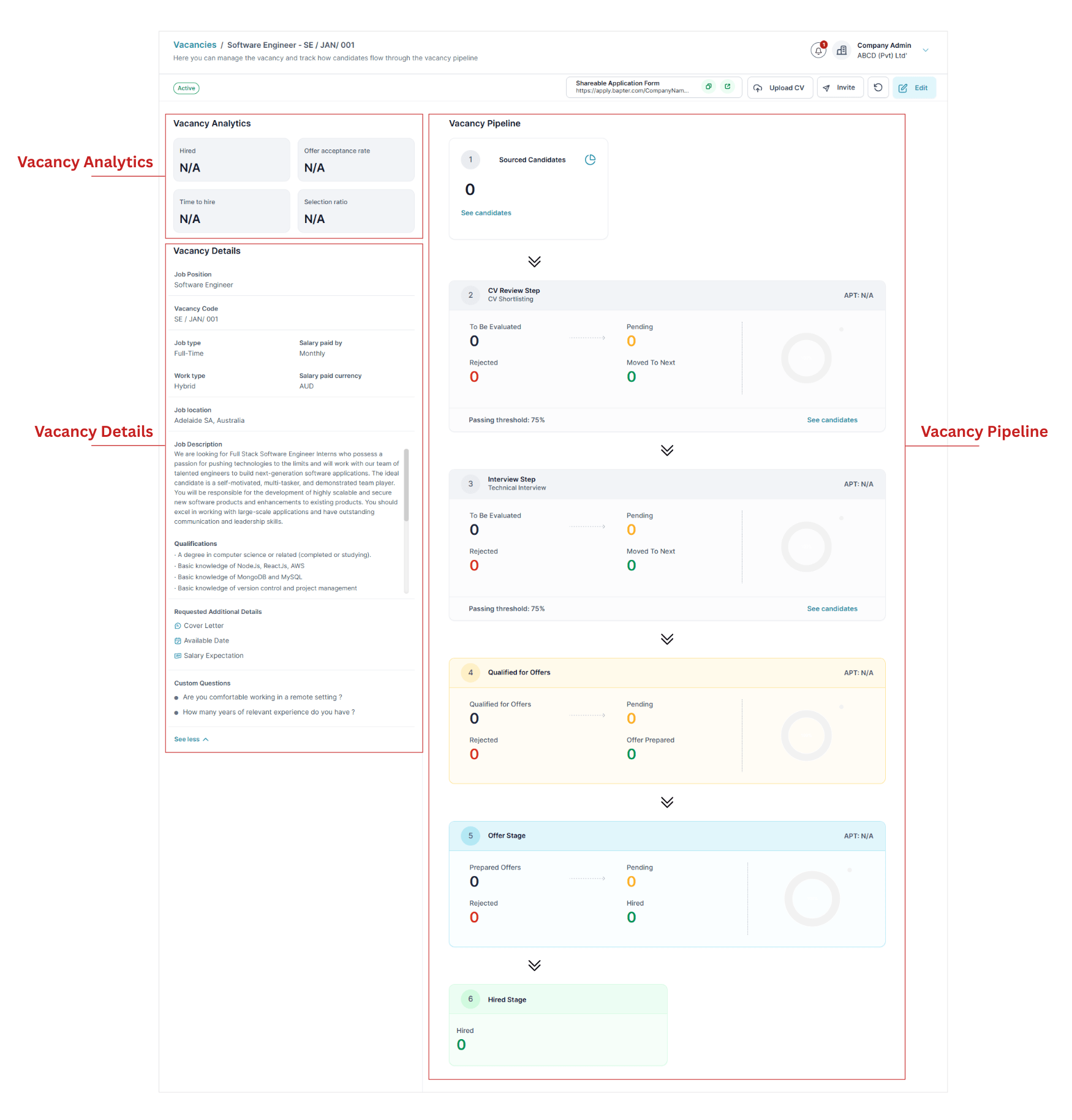
Now you have a drafted vacancy. Before we move forward to the next steps, we want you to notice few important sections of the vacancy page.
Understand Sections of a Vacancy
Once you are inside the vacancy page you created, there are three main sections.
- Vacancy Analytics – where you see KPIs such as hired count, offer acceptance rate, time to hire and selection ratio
- Vacancy Details – Job description of the vacancy
- Vacancy Pipeline – Workflow steps that you need to follow to evaluate candidates as a pipeline. You need to add which steps you need to evaluate candidates (which is covered in the next step).
The next steps is to set up the vacancy pipeline. Basically you need to set how you want to evaluate candidates for this vacancy.